Tutorial Manager Component Reference
Tutorial Editor Window
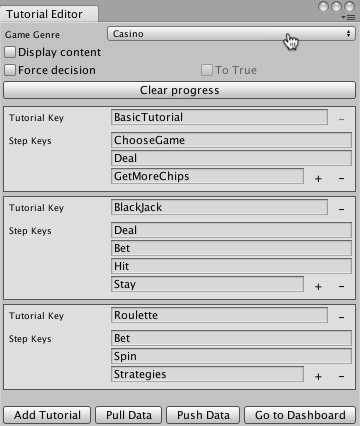
| Element | Purpose |
|---|---|
| Game Genre | The genre of your game. Choose the genre that best describes your game. |
| Display content | When checked, the editor window displays the text of AdaptiveText components beneath the associated tutorial step. |
| Force decision | Simulates a specific decision from the Tutorial Manager decision engine while testing in play mode in the Unity Editor. Set the decision to simulate with the To True option. |
| To True | Check the To True option to simulate a decision to show the tutorial; uncheck the box to simulate a decision to not show the tutorial. |
| Clear progress | Clears the Tutorial Manager state. |
| Tutorial Section | Each tutorial has its own section in the window. |
| Tutorial Key | A unique identifier for the tutorial. |
| Delete Tutorial Button | Click - to delete the tutorial. (You cannot delete the first tutorial in the window.) |
| Step Keys | A unique identifier for each step in the tutorial. |
| Step Text | (Read only) The text associated with the tutorial step. Shown when Display content is checked. |
| Add, Remove Step Buttons | Click the + or - buttons next to the last step to add or remove steps at the end of the tutorial. Each tutorial must have a minimum of one step. |
| Add Tutorial | Add a new tutorial section to the game. |
| Pull Data | Pulls data from the Development environment of the Tutorial Manager service. Caution: Pulling data overwrites all changes you have made to the tutorial structure and adaptive text since the last time you pushed your data to the service. |
| Push Data | Pushes data to the Development environment of the Tutorial Manager service. Caution: Pushing data overwrites the tutorial structure and adaptive text currently in the Development environment. |
| Go to Dashboard | Opens the Tutorial Manager dashboard. |
Adaptive Content Component
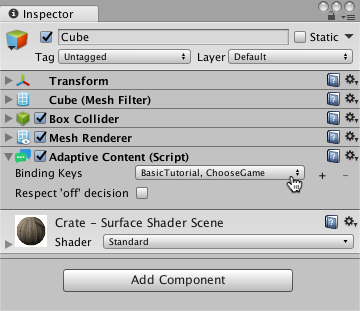
The AdaptiveContent component turns on its parent GameObject when the Tutorial Manager starts one of the tutorial steps to which it is bound and turns it off when the step is complete.
| Element | Purpose |
|---|---|
| Binding Keys | Each key binds the AdaptiveComponent to a tutorial and step. (Enter the keys for your tutorials and steps on the Tutorial Editor window.) |
| Binding +, - buttons | Click + to add bind the component to an additional tutorial step. Click - to remove a binding. Each component must have a minimum of one binding. |
| Respect ‘off’ decision | When checked (true), the associated GameObjects are only enabled when the Tutorial Manager has decided the default tutorial should be shown (TutorialManager.GetDecision() returns true). When unchecked (false), the associated GameObjects are enabled whenever the tutorial step is started by the Tutorial Manager. |
Adaptive Text Component
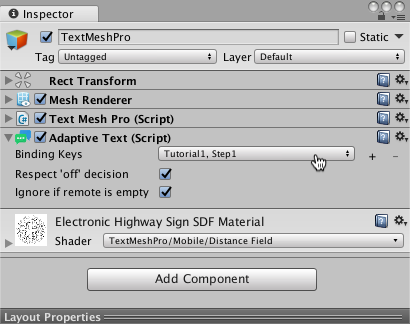
The AdaptiveText component extends the AdaptiveContent class. In addition to controlling whether its GameObject is active, the AdaptiveText component also controls the text of a Text, Text Mesh, or Text Mesh Pro component attached to the same GameObject.
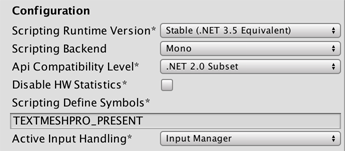
Important: To use Tutorial Manager with TextMeshPro, you must add the TEXTMESHPRO_PRESENT scripting define symbol:
Open the Player Settings window (menu: Edit > Project Settings > Player).
Click to open the Other Settings section, if necessary.
Under Configuration, enter TEXTMESHPRO_PRESENT into the Scripting Define Symbols text box.
When you add an AdaptiveText component to a GameObject, bind it to a tutorial step, and push your tutorial state model to the Unity Analytics service, the Tutorial Manager creates a remote text field on the Tutorial Manager dashboard. At runtime, the value of the remote field takes precedence over the value entered in the Unity Editor. Use the Push and Pull Data buttons on the Tutorial Editor window to keep your project in sync with your dashboard.
Only bind a single AdaptiveText component to any individual tutorial step. (If you bind multiple AdaptiveText components to a step, the text of all of these components is updated to the value of the same remote text field.) If you need more than one text component for a step, you can use AdaptiveContent components instead. However, only the text associated with the AdaptiveText component can be updated remotely from the Tutorial Manager background.
| Element | Purpose |
|---|---|
| Binding Keys | Each key binds the AdaptiveComponent to a tutorial and step. (Enter the keys for your tutorials and steps on the Tutorial Editor window.) |
| Binding +, - buttons | Click + to add bind the component to an additional tutorial step. Click - to remove a binding. Each component must have a minimum of one binding. |
| Respect ‘off’ decision | When checked (true), the associated text objects are only enabled when the Tutorial Manager has decided the default tutorial should be shown (TutorialManager.GetDecision() returns true). When unchecked (false), the associated text objects are enabled whenever the tutorial step is started by the Tutorial Manager. |
| Ignore if remote is empty | When checked, the Tutorial Manager does not update the associated text component if the remote field contains an empty string. When unchecked, entering an empty string into the remote field removes the text from the text component. The Ignore if remote is empty setting applies both at runtime and when you pull data from the service. |